
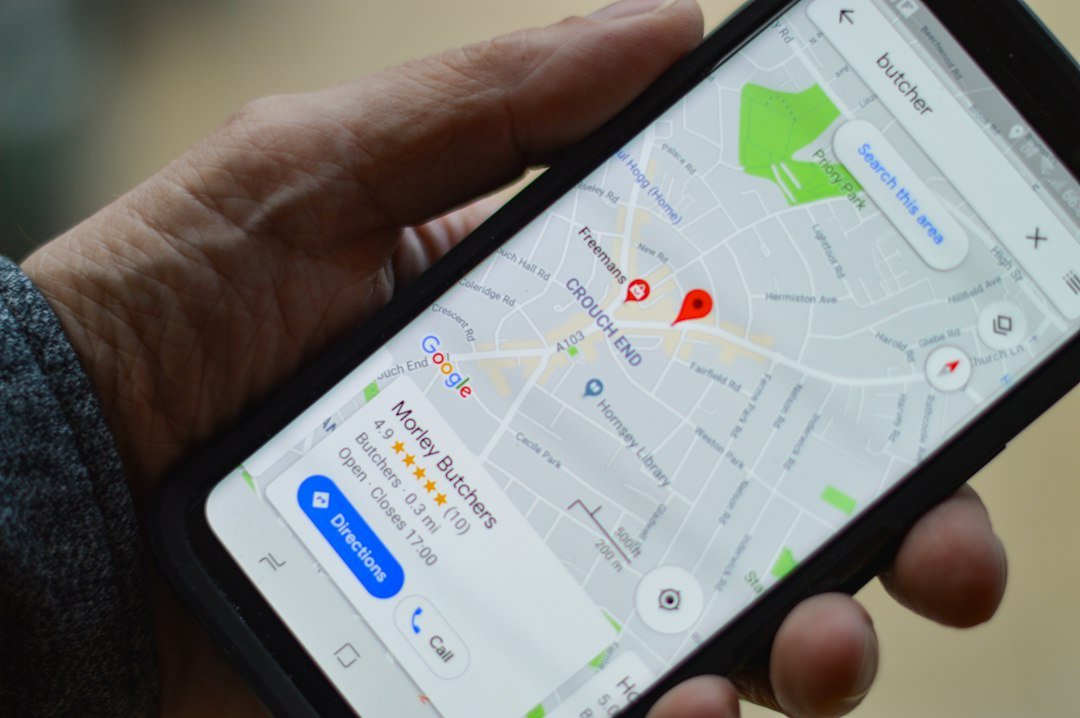
If you only have time to do one thing for your business online this month, make it this. A Google Business Profile is the free listing that shows up when someone searches for you by name, or looks for a business like yours nearby. It’s the box with your hours, reviews, photos and a Call button. For a lot of local businesses it’s the first thing a customer sees, before your website, and sometimes instead of it.
Here’s how to set one up properly, in plain English, without paying anyone. Google’s own Business Profile help centre has the official steps, and our local SEO guide for Australian small businesses shows how a profile fits into the bigger picture.
Before you start: check you’re eligible
Google lists businesses that deal with customers face to face, either at a physical location or by travelling to them. That covers shops, cafés, clinics, tradies and mobile services. A pure online business with no customer contact in person generally doesn’t qualify. A virtual office, a PO box or a mate’s address won’t do either, and using one is a quick way to get suspended.
Step 1: Search first, then claim your Google Business Profile
Search for your business name on Google while signed in with the account you want to use. Quite often a listing already exists, created by Google or a previous owner. If it does, claim it rather than creating a duplicate. If it doesn’t, you can add your business from the same screen. Use an email address you’ll keep long term, ideally one tied to the business rather than a personal inbox.
Step 2: Enter your details exactly
Be careful and consistent here:
- Business name: use the name you actually trade under, the same as your signage and website. Don’t add keywords or suburbs.
- Category: pick the most specific primary category you can, such as Electrician or Physiotherapist. You can add a few secondary categories for other services.
- Address: enter it the way you write it elsewhere. If you serve customers at their home and don’t have a shopfront, set service areas and hide your address.
- Phone and website: use a number you answer, and link to your main website or a relevant landing page.
Step 3: Verify that you own it
Google needs proof the business is yours. Depending on your business, it’ll offer options such as a phone call, text, email, video recording or a postcard in the mail. Postcards can take a few days to arrive, so don’t leave this to the last minute. Until you’re verified, your changes won’t be shown to the public, so it’s worth finishing this promptly.
Step 4: Fill out everything
Complete profiles tend to perform better than half-finished ones, and more importantly they help real customers. Go through each part:
- Opening hours: set normal hours and update special hours for public holidays and Christmas. Nothing annoys people more than driving to a closed shop.
- Description: write a short, honest summary of what you do and who you serve. Skip the hype and don’t stuff it with keywords.
- Services or products: list what you offer, with short descriptions and prices if they’re fixed.
- Attributes: tick the relevant ones, such as wheelchair accessible, online appointments or outdoor seating.
- Booking or enquiry links: add them if you take bookings online.
Step 5: Add real photos
Photos are one of the biggest trust signals. Upload a clear logo, a cover photo, the outside of your premises so people can spot it from the street, the inside, your team and examples of your work. Use your own photos rather than stock images, and add new ones regularly. A phone camera in good light is perfectly fine.
Step 6: Start collecting reviews
Once you’re verified, grab your review link from the dashboard and start asking happy customers to leave a review. Reply to every review in a friendly, professional way. Don’t offer rewards for reviews, as it’s against Google’s rules. We’ve covered the dos and don’ts in our guide to getting more Google reviews.
Step 7: Post updates now and then
You can share updates, offers and events directly on your profile. They don’t need to be fancy. A photo of a recent job, a new menu item or a note about holiday hours is enough. Aim for something every week or two if you can manage it, and don’t worry if you can’t.
Common Google Business Profile mistakes to avoid
- Keyword-stuffing the business name, which risks suspension
- Creating duplicate listings for the same location
- Forgetting to update hours, address or phone number after a change
- Listing a home address publicly when you only travel to customers
- Ignoring questions and reviews
Keep an eye on it
Once a month, check the performance section to see how many people found you, called you or asked for directions. Look for incorrect edits suggested by users or changes Google has made on its own, and fix them. A Google Business Profile you tend to regularly is one that keeps working for you, quietly, every day. If your website needs attention too, start with our new website SEO checklist.